

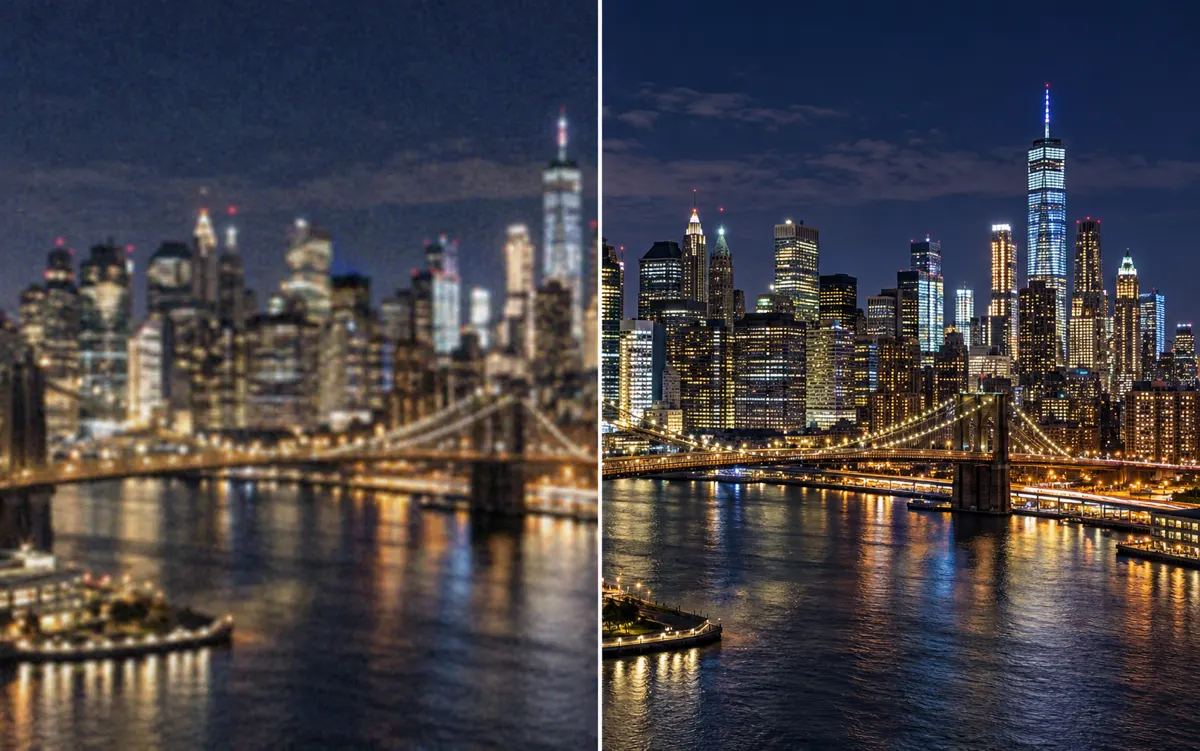
When to use an AI photo enhancer
Choose enhancement when the composition is already useful but softness or compression hides detail. Start with the largest original you have, rather than repeatedly saving a small preview.
Portraits with soft detail
Compare the eyes, hairline and skin texture with the original. Ask for restrained clarity without smoothing away distinguishing features; sharper-looking eyelashes are not proof that missing facial information was recovered.
Product photos and packaging
Name the label wording, logo, seams and product outline that should stay. Inspect these at full size after generation, especially small lettering and repeated textures. Enhancement produces a new interpretation, so verify it before using it in a listing.
Compressed images for larger layouts
Use the 4K tier when you need a larger generated version. Actual pixel dimensions follow the chosen ratio. Compare blocky edges and noisy areas; AI can infer detail, and more output pixels do not certify the original image’s accuracy.
Write a focused enhancement brief
- Improve
- Reduce visible compression artifacts and grain without adding a new surface texture.
- Preserve
- Keep the eye shape, exact label wording, product edges, colors and composition.
Choose the tool that matches the change
Resize image
For an exact width or height with the existing image content, use the local resizer. Resizing does not invent detail and does not spend generation credits.
Restore old photos
For scratches, missing areas or faded old photographs, choose restoration and describe the damage. Enhancement and restoration are different tasks.
Image to Image AI Photo Editor
To change clothing, a background or the visual style, use the AI photo editor. Keep this page for clarity and detail rather than scene replacement.