

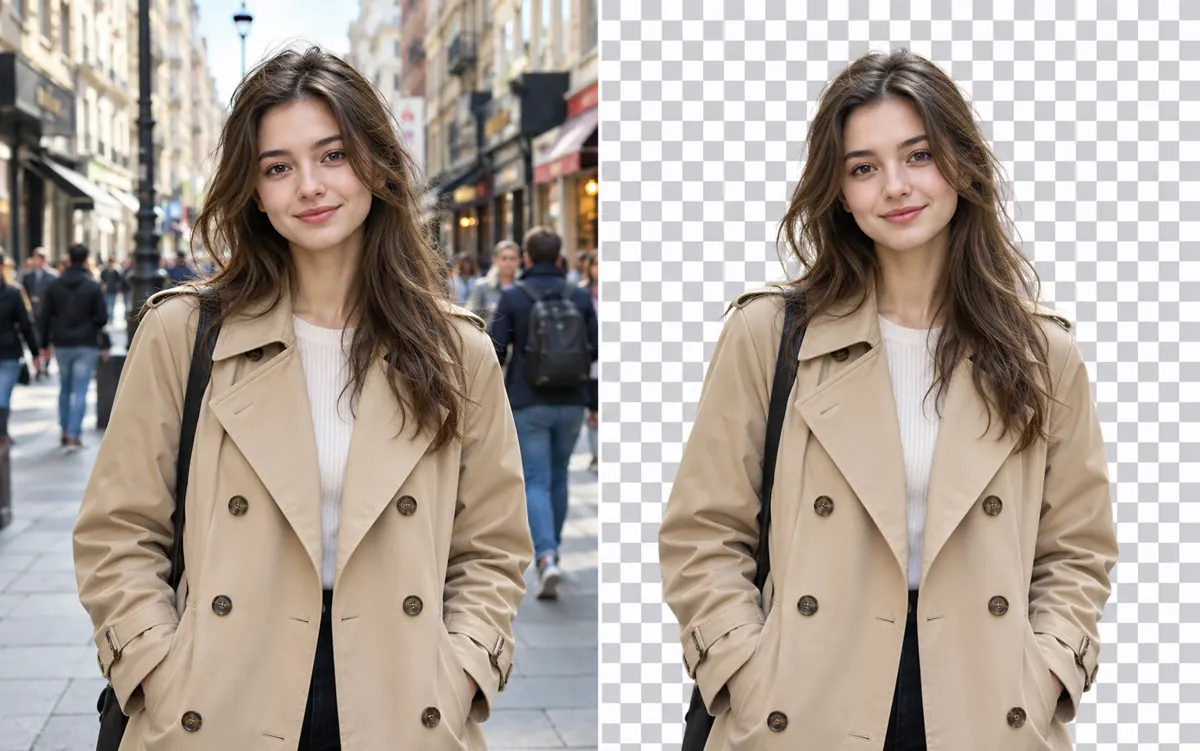
About this tool: Remove background
Isolate your subject on a transparent PNG background.
Preserves the subject as closely as possible. Check fine edges after generation.
Use a photo with a clearly distinguishable foreground subject and specify what should remain when the scene contains several objects. Background removal aims to preserve the subject’s shape, colour and visible text while isolating it on a real transparent PNG background.
A clear, well-lit original gives the editor more information. Describe one main change and what must stay unchanged. Choose an output ratio suited to your intended use.
What you can do
AI may change fine details. Check the result before using it.
Inspect hair, fur, glass, jewellery and gaps between fingers. A checkerboard drawn inside an opaque image is not transparency. If you need a new room or studio setting rather than a cutout, use the AI background tool; this task does not replace a scene with another backdrop.
Uses the same credits as Image Studio. The price is shown before you start. Results are saved in History → Tool creations.
AI output is private and appears in History → Tool creations. Review it, download it, or reuse it in your next image or video task.
Frequently asked questions
Does this tool cost credits?
AI generation requires sign-in. The selected size and quality determine the credit quote shown before submission; a free page visit does not mean free generation.
Where is my result saved?
AI output is private and appears in History → Tool creations. Review it, download it, or reuse it in your next image or video task.
What should I check before using the result?
Compare the original and output at full size. Check faces, edges, text and product details. AI can change small details or estimate information missing from the source.